4.7. Image Classes#
4.7.1. Overview#
The available image classes are:
Name |
Description |
|---|---|
Image object containing three channel sRGB data as well as geometry information. |
|
Grayscale version of |
|
Image object with only a single channel modeling a physical or physiological property. |
|
Raytracer created image that holds raw XYZ colorspace and power data.
This object allows for the creation of
RGBImage and ScalarImage objects. |
For both RGBImage and GrayscaleImage, the pixel values don’t correspond to physical intensities,
but non-linearly scaled values for human perception.
4.7.2. Creation of ScalarImage, GrayscaleImage and RGBImage#
ScalarImage, GrayscaleImage and RGBImage require a data argument and a geometry argument.
The latter can be provided as either a side length list s or a positional extent parameter.
s is a two element list describing the side lengths of the image.
The first element gives the length in x-direction, the second in y-direction.
The image is automatically centered at x=0 and y=0
Alternatively, the edge positions are described using the extent parameter.
It defines the x- and y- position of the edges as four element list.
For instance, extent=[-1, 2, 3, 5] describes that the geometry of the image reaches from x=-1
to x=2 and y=3 to y=5.
The data argument must be a numpy array with either two dimensions (ScalarImage and GrayscaleImage)
or three dimensions (RGBImage). In both cases, the data should be non-negative and in the case of RGBImage
and GrayscaleImage lie inside the value range of [0, 1].
The following example creates a random GrayscaleImage:
import numpy as np

img_data = np.random.uniform(0, 0.5, (200, 200))

img = ot.GrayscaleImage(img_data, s=[0.1, 0.08])
A random, spatially offset RGBImage is created with:
import numpy as np

img_data = np.random.uniform(0, 1, (200, 200, 3))

img = ot.RGBImage(img_data, extent=[-0.2, 0.3, 0.08, 0.15])
Loading images (RGBImage, GrayscaleImage or ScalarImage) is implemented
by providing a path string instead of an array:
img = ot.RGBImage("image_file.png", extent=[-0.2, 0.3, 0.08, 0.15])
For the grayscale image types, an exception is raised when there is significant coloring in the input image. Remove the color information or convert it to an achromatic color space to use it as grayscale input.
RGBImage and GrayscaleImage presets are available in Section 4.7.14.
There are multiple PSF GrayscaleImage presets for convolution, see Section 4.11.7.
4.7.3. Rendering a RenderImage#
Example Geometry
The code snippet below generates a geometry with multiple sources and detectors.
# make raytracer
RT = ot.Raytracer(outline=[-5, 5, -5, 5, -5, 60])

# add Raysources
RSS = ot.CircularSurface(r=1)
RS = ot.RaySource(RSS, divergence="None",
                  spectrum=ot.presets.light_spectrum.FDC,
                  pos=[0, 0, 0], s=[0, 0, 1], polarization="y")
RT.add(RS)

RSS2 = ot.CircularSurface(r=1)
RS2 = ot.RaySource(RSS2, divergence="None", s=[0, 0, 1],
                   spectrum=ot.presets.light_spectrum.d65,
                   pos=[0, 1, -3], polarization="Constant",
                   pol_angle=25, power=2)
RT.add(RS2)

# add Lens 1
front = ot.ConicSurface(r=3, R=10, k=-0.444)
back = ot.ConicSurface(r=3, R=-10, k=-7.25)
nL1 = ot.RefractionIndex("Cauchy", coeff=[1.49, 0.00354, 0, 0])
L1 = ot.Lens(front, back, de=0.1, pos=[0, 0, 10], n=nL1)
RT.add(L1)

# add Detector 1
Det = ot.Detector(ot.RectangularSurface(dim=[2, 2]), pos=[0, 0, 0])
RT.add(Det)

# add Detector 2
Det2 = ot.Detector(ot.SphericalSurface(R=-1.1, r=1), pos=[0, 0, 40])
RT.add(Det2)

# trace the geometry
RT.trace(1000000)
Source Image
Rendering a source image is done with the source_image
method of the Raytracer class.
Note that the scene must be traced first.
The following code renders an RenderImage for the second source:
simg = RT.source_image(source_index=1)
Detector Image
Calculating a detector_image is handled similarly:
dimg = RT.detector_image()
detector_index (defaulting to 0) specifies the detector for image rendering.
Without the optional source_index parameter, intersecting rays from all sources contribute to the image.
dimg = RT.detector_image(detector_index=0, source_index=1)
In the case of a spherical detector,
a suitable projection_method should be chosen (see Section 4.7.6).
Moreover, the extent of the detector image can be set with the extent parameter,
that is provided as [x0, x1, y0, y1] with \(x_0 < x_1, ~ y_0 < y_1\).
By default, the extent is adjusted automatically to contain all rays hitting the detector.
The limit parameter can also be provided for the approximation of diffraction-limited systems
(see Section 4.7.7).
dimg = RT.detector_image(detector_index=0, source_index=1, extent=[0, 1, 0, 1],
                         limit=3, projection_method="Orthographic")
4.7.4. Iterative Render#
With the default tracing operation, all rays are stored in memory. This leads to the number of rays being limited by the system’s available RAM. A typical PC can only simulate a few million rays without running out of memory.
The function iterative_render exists
to allow the usage of even more rays.
It does multiple traces and iteratively adds up the resulting images.
Doing this, there is no upper bound on the ray count.
Parameter N provides the overall number of rays for raytracing.
The returned value of iterative_render
is a list of rendered detector images.
If the detector position parameter pos is not provided,
a single detector image is rendered at the detector specified by detector_index.
rimg_list = RT.iterative_render(N=1000000, detector_index=1)
If pos is provided as 3D coordinate, the detector is moved to this position before tracing.
rimg_list = RT.iterative_render(N=10000, pos=[0, 1, 0], detector_index=1)
If pos is a list, len(pos) detector images are rendered.
All other parameters are either automatically repeated len(pos) times or can be specified
as list with the same length as pos.
Example calls include:
rimg_list = RT.iterative_render(N=10000, pos=[[0, 1, 0], [2, 2, 10]], detector_index=1)
rimg_list = RT.iterative_render(N=10000, pos=[[0, 1, 0], [2, 2, 10]],
                                detector_index=[0, 0], limit=[None, 2],
                                extent=[None, [-2, 2, -2, 2]])
Tips for Faster Rendering
With large rendering times, even small speed-ups add up significantly:
Setting the raytracer option
RT.no_polskips the calculation of the light polarization. Note that depending on the geometry the polarization direction can have an influence of the amount of light transmission at different surfaces. It is advised to experiment beforehand, if the parameter seems to have any effect on the image. Depending on the geometry,no_pol=Truecan lead to a speed-up of 10-40%.Prefer inbuilt surface types to data or function surfaces
- Improve the sequential order of elements or the initial ray distribution. For instance:
Moving the color filters to the front of the system avoids the calculation of ray refractions that get absorbed at a later stage.
Orienting the ray direction cone of the source towards the setup, therefore maximizing the number of rays hitting all lenses. See the Arizona Eye Model example on how this could be done.
4.7.5. Saving and Loading a RenderImage#
Saving
A RenderImage can be saved on the disk for later use in optrace.
This is done with the following command that takes a file path as argument:
dimg.save("RImage_12345")
The file ending should be .npz, but is appended automatically otherwise.
This function overrides files and throws an exception when saving failed.
Loading
The static method load
from the RenderImage loads a stored file.
It requires a path and returns the RenderImage object.
dimg = ot.RenderImage.load("RImage_12345")
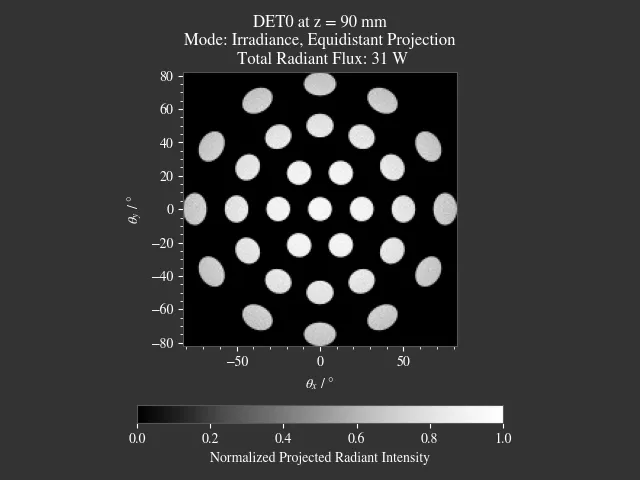
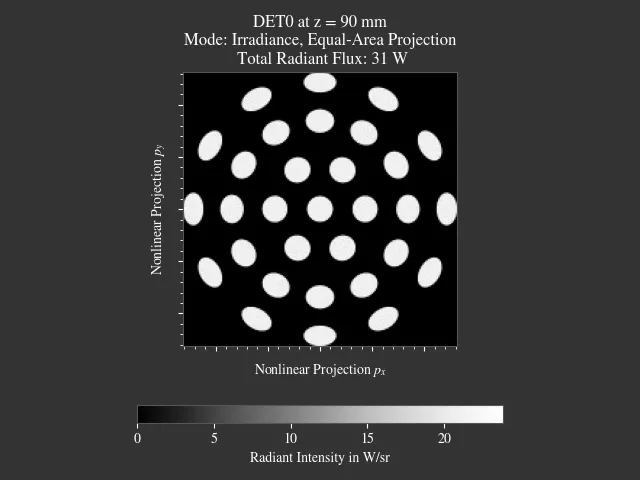
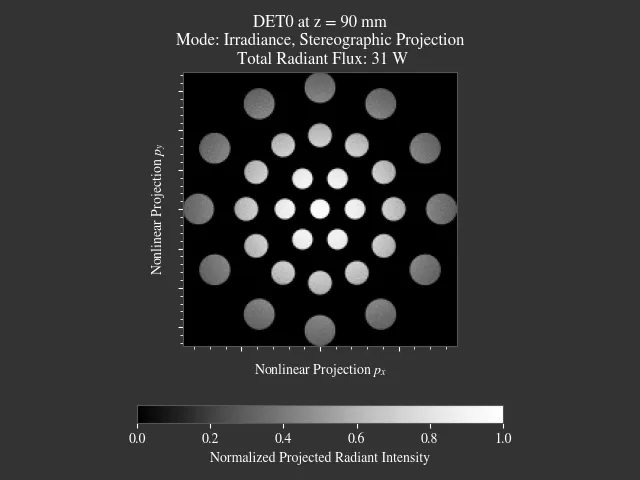
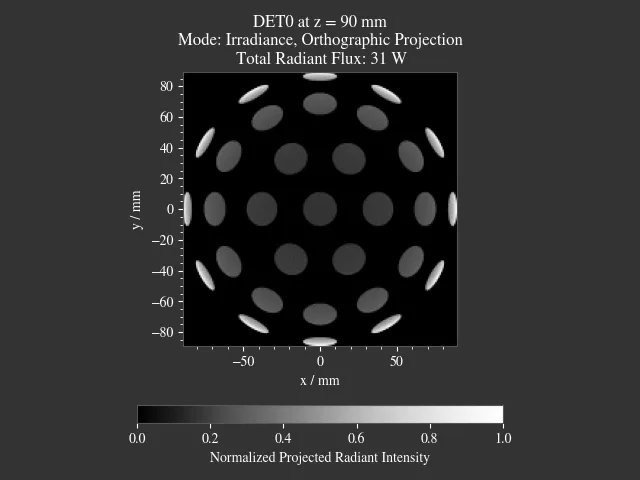
4.7.6. Sphere Projections#
Sphere projections are required to display a sphere segment in a planar, rectangular view. Note that there is no way to correctly represent angles, distances and areas at the same time.
Below you can find the implemented projection methods and references to a more detailed explanation. Details on the mathematical definition are also found in Section 5.4.2.
The available methods are:
|
Perspective projection, sphere surface seen from far away [1] |
|---|---|
|
Conformal projection (preserving local angles and shapes) [2] |
|
Projection keeping the radial direction from a center point equally spaced [3] |
|
Area preserving projection [4] |
|
|
|
|
4.7.7. Resolution Limit Filter#
Unfortunately, optrace does not take wave optics into account when simulating.
To estimate the effect of a resolution limit the RenderImage
class provides a limit parameter.
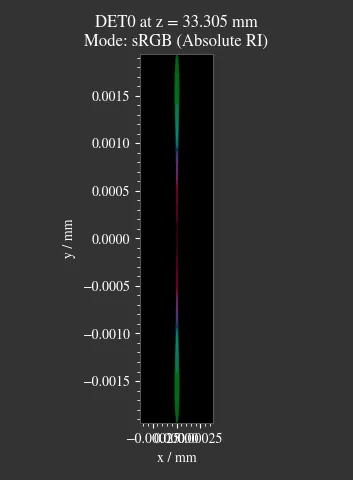
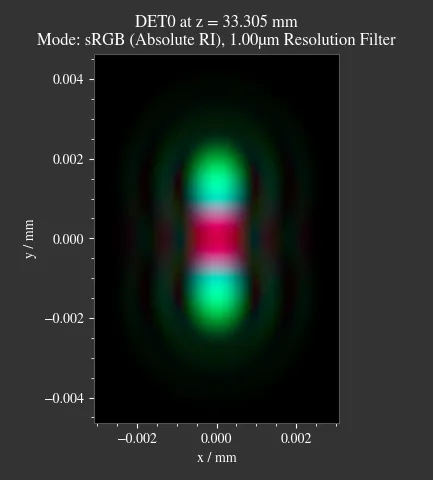
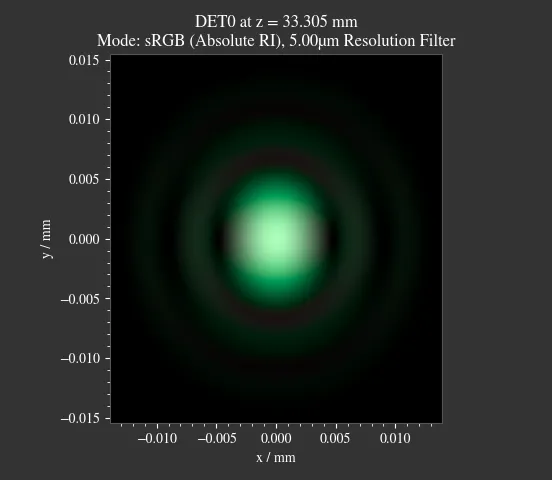
For a given value a corresponding Airy disc is created, that is convolved with the image.
This parameter describes the Rayleigh limit, being half the size of the Airy disc core (zeroth order),
known from the equation:
Here, \(\lambda\) is the wavelength and \(\text{NA}\) is the numerical aperture. While the limit is wavelength dependent, one fixed value is applied to all wavelengths for simplicity. Only the first two diffraction orders (core + 2 rings) are used, higher orders should have only a negligible effect on the image.
Note
The limit parameter is only an estimation of how large the impact of a resolution limit on the image should be. The simulation neither knows the actual limit nor takes into interference and diffraction.
4.7.8. Generating Images from RenderImage#
Usage
Displayable image types are generated using the
RenderImage.get method.
The function takes an optional pixel size parameter, that determines the pixel count for the smaller image size.
Internally the RenderImage stores its data with a
pixel count of 945 for the smaller side, while the larger side is either 1, 3 or 5 times this size,
depending on the side length ratio. Therefore no interpolation takes place that would falsify the results.
To only join full bins, the available sizes are reduced to:
>>> ot.RenderImage.SIZES
[1, 3, 5, 7, 9, 15, 21, 27, 35, 45, 63, 105, 135, 189, 315, 945]
As can be seen, all sizes are integer factors contained in 945. All sizes are odd, so there is always a pixel/line/row for the image center. Without a center pixel/line/row the center position would be ill-defined.
In the function get, the nearest value from
RenderImage.SIZES to the user selected value is chosen.
Let us assume the dimg has a side length of s=[1, 2.63],
which will be rendered in a resolution of 945x2835 internally.
This is the case because the nearest side factor to 2.63 is 3 and
because 945 is the size for all internally rendered images.
From this resolution, the image can be scaled to 315x945, 189x567, 135x405, 105x315, 63x189, 45x135, 35x105, 27x81,
21x63, 15x45, 9x27, 7x21, 5x15, 3x9, 1x3.
For a user-chosen size of 500, the nearest size is 315x945.
These restricted pixel sizes lead to non-square pixel areas. But these are handled correctly by the plotting and processing functions in optrace. They will only become relevant when exporting the image to an image file, where the pixels must be square. More details for this are available in section Section 4.7.11.
To get a Illuminance image with 315 pixels we can write:
img = dimg.get("Illuminance", 315)
Only for image modes "sRGB (Perceptual RI)" and "sRGB (Absolute RI)" the returned object type
is RGBImage .
For all other modes it is of type ScalarImage.
For mode "sRGB (Perceptual RI)", there are two optional additional parameters L_th
and chroma_scale. See Section 4.15.5 for more details on them.
Image Modes
|
Power per area |
|---|---|
|
Luminous power per area |
|
A human vision approximation of the image. Colors outside the gamut are chroma-clipped. Preferred sRGB-Mode for “natural”/”everyday” scenes. |
|
Similar to sRGB (Absolute RI), but with uniform chroma-scaling. Preferred mode for scenes with monochromatic sources or highly dispersive optics. |
|
Masks for out-of-gamut colors, with white indicating colors outside the gamut |
|
Human vision approximation in grayscale colors. Similar to Illuminance, but with non-linear brightness function. |
|
Hue image from the CIELUV colorspace |
|
Chroma image from the CIELUV colorspace. Depicts how colorful an area seems compared to a similar illuminated grey area. |
|
Saturation image from the CIELUV colorspace. How colorful an area seems compared to its brightness. Quotient of Chroma and Lightness. |
The difference between chroma and saturation is more thoroughly explained in [5]. An example for the difference of both sRGB modes is seen in Table 5.5.
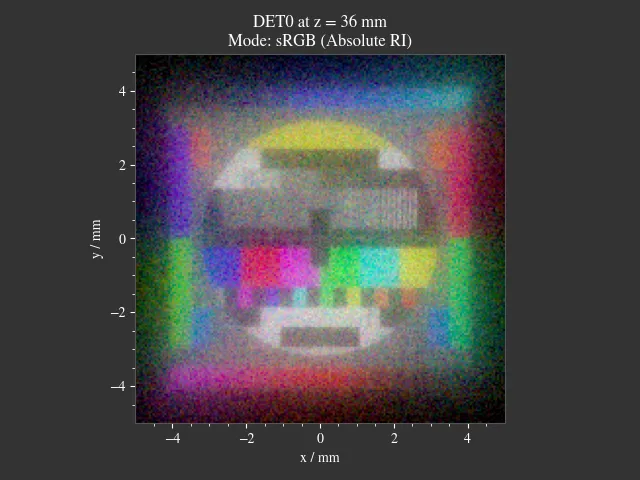
Fig. 4.27 sRGB Absolute RI# |
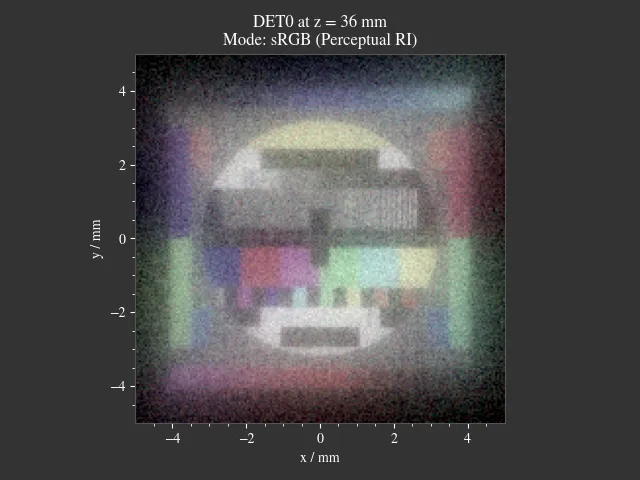
Fig. 4.28 sRGB Perceptual RI# |
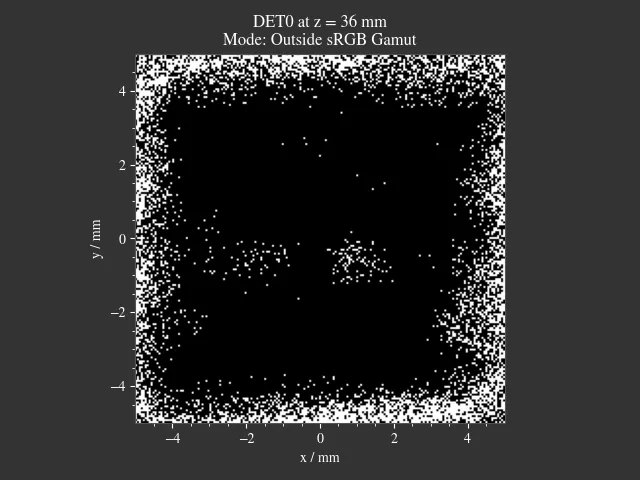
Fig. 4.29 Values outside of sRGB# |
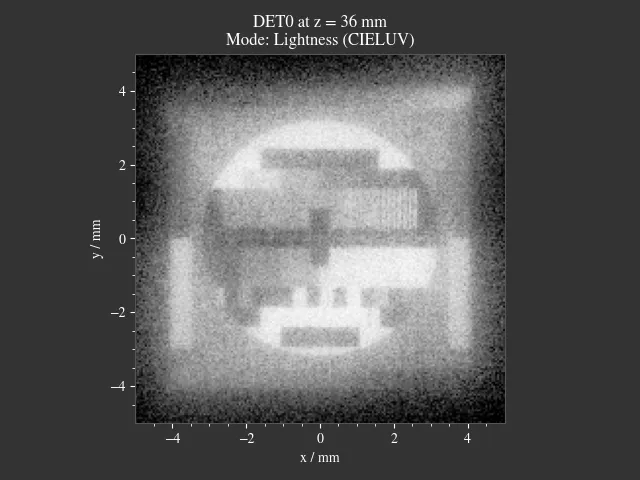
Fig. 4.30 Lightness (CIELUV)# |
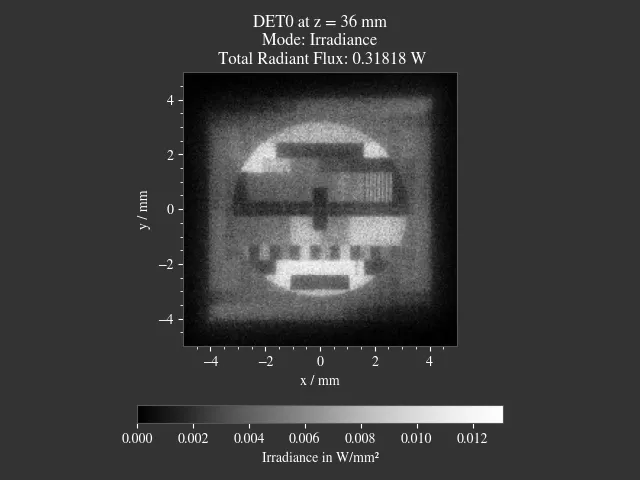
Fig. 4.31 Irradiance# |
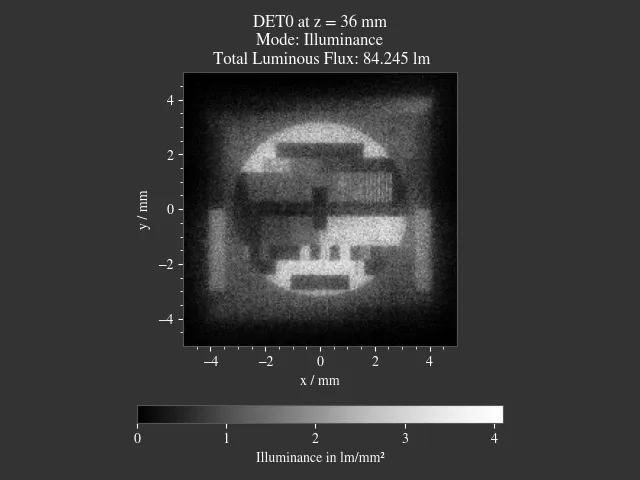
Fig. 4.32 Illuminance# |
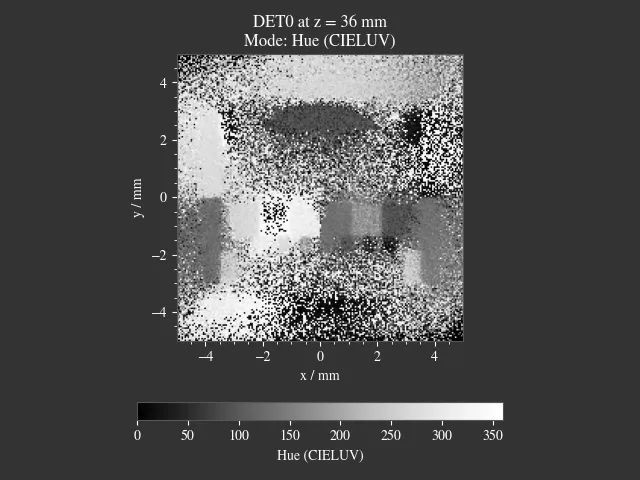
Fig. 4.33 Hue (CIELUV)# |
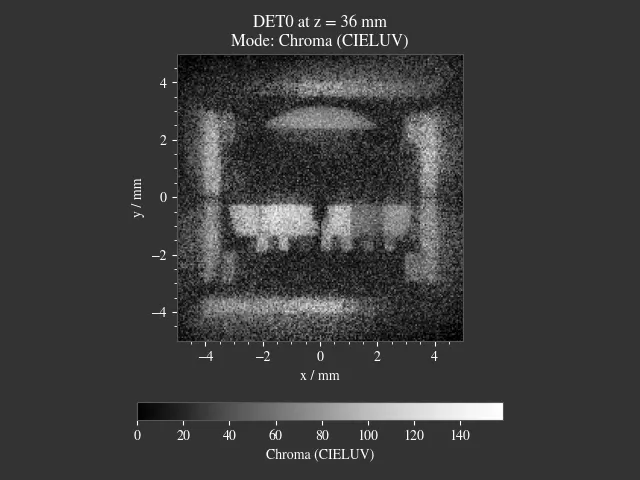
Fig. 4.34 Chroma (CIELUV)# |
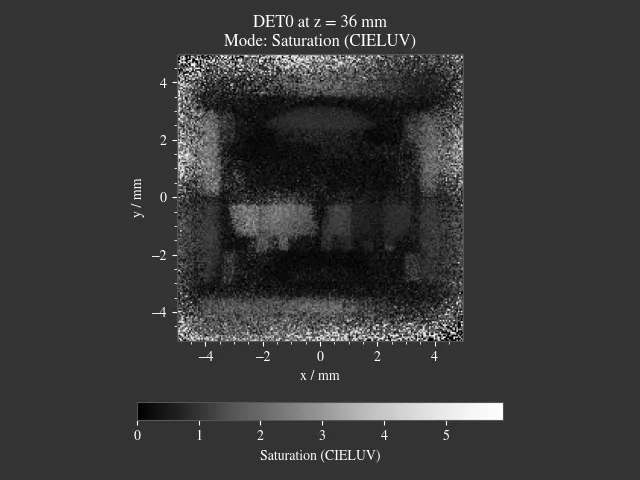
Fig. 4.35 Saturation (CIELUV)# |
4.7.9. Converting between GrayscaleImage and RGBImage#
Use RGBImage.to_grayscale_image() to convert a
colored RGBImage to a GrayscaleImage.
The channels are weighted according to their luminance, see question 9 of [6].
Use GrayscaleImage.to_rgb_image()
to convert a GrayscaleImage to an RGBImage. All grayscale values are repeated for the R, G, B channels.
Both methods require no parameters and return the other image object type.
4.7.10. Image Profile#
An image profile is a line profile of a generated image in x- or y-direction.
It is created by the profile() method.
The parameters x and y define the positional value for the profile.
The following example generates an image profile in y-direction at x=0:
bins, vals = img.profile(x=0)
For a profile in x-direction we can write:
bins, vals = img.profile(y=0.25)
The function returns the histogram bin edges and a list of profiles. The latter consists of either a single numpy array (scalar images) or the R, G, B channel profiles (colored images). Note that the bin edge array is larger than the profile arrays by one element.
4.7.11. Saving Images#
ScalarImage, GrayscaleImage and RGBImage can be saved to disk in the following way:
img.save("image_render_srgb.jpg")
The file type is automatically determined from the file ending in the path string.
The saved image can be rotated by 180 degrees using flip=True:
img.save("image_render_srgb.jpg", flip=True)
Depending on the file type, additional parameter combinations exists, for instance compression settings:
import cv2
img.save("image_render_srgb.jpg", params=[cv2.IMWRITE_PNG_COMPRESSION, 1], flip=True)
See
cv2.ImwriteFlags
for more information.
The image is automatically interpolated so the exported image has the same side length ratio
as the RGBImage or ScalarImage object.
Note
While the Image has arbitrary, generally non-square pixels, the export image needs to be rescaled to have square pixels. However, in many cases there is no exact ratio that matches the side ratio with integer pixel counts. For instance, an image with sides 12.532 mm x 3.159 mm and a desired export size of 105 pixels (smaller side) leads to an image of 417 pixels x 105 pixels. This matches the ratio approximately, but is still off by -0.46 pixels (around -13.7 µm). This error grows for smaller pixel counts.
4.7.12. Plotting Images#
See Plotting Images.
4.7.13. Image Properties#
Overview
The image classes share property methods such as geometry information and metadata.
When a ScalarImage or RGBImage is created from a RenderImage, the metadata and geometry
is automatically propagated into the new object.
Size Properties
Extent:
>>> dimg.extent
array([-0.0081,  1.0081, -0.0081,  1.0081])
Side length:
>>> dimg.s[1]
1.0162
Internal data shape:
>>> dimg.shape
(945, 945, 4)
Area per pixel in mm²:
>>> dimg.Apx
1.1563645362671817e-06
Metadata
>>> dimg.limit
3.0

>>> dimg.projection is None
True
Data Access
Access the underlying array data using:
dimg.data
Image Powers (RenderImage only)
Power in W and luminous power in lm:
dimg.power()
dimg.luminous_power()
Image Mode (RGBImage/GrayscaleImage/ScalarImage only)
>>> img.quantity
'Illuminance'
4.7.14. Image Presets#
Below you can find different image presets.
As for the image classes, a specification of either the s or extent geometry parameter is
mandatory.
One possible call could be:
img = ot.presets.image.cell(s=[0.2, 0.3])
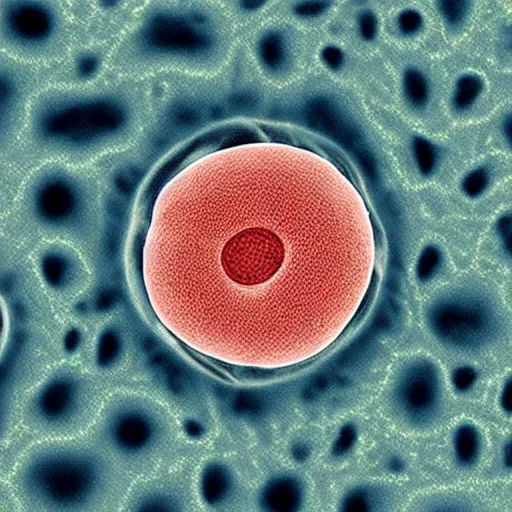
Fig. 4.36 Cell image for microscope examples
(Source).
Usable as |
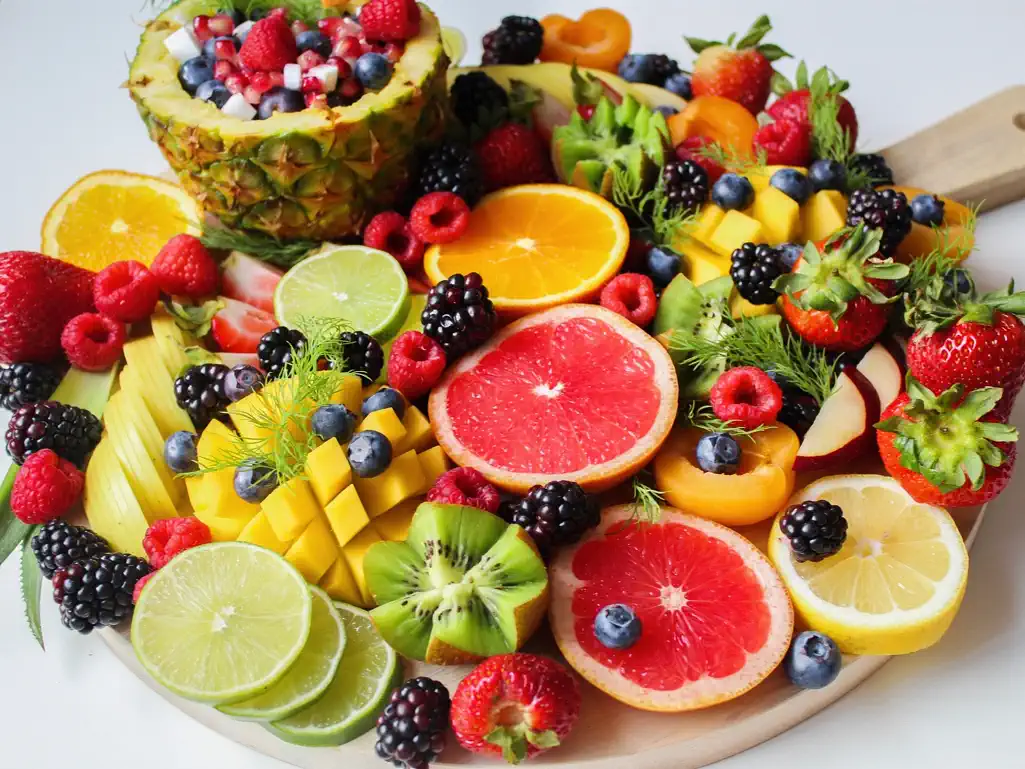
Fig. 4.37 Photo of different fruits on a tray
(Source).
Usable as |
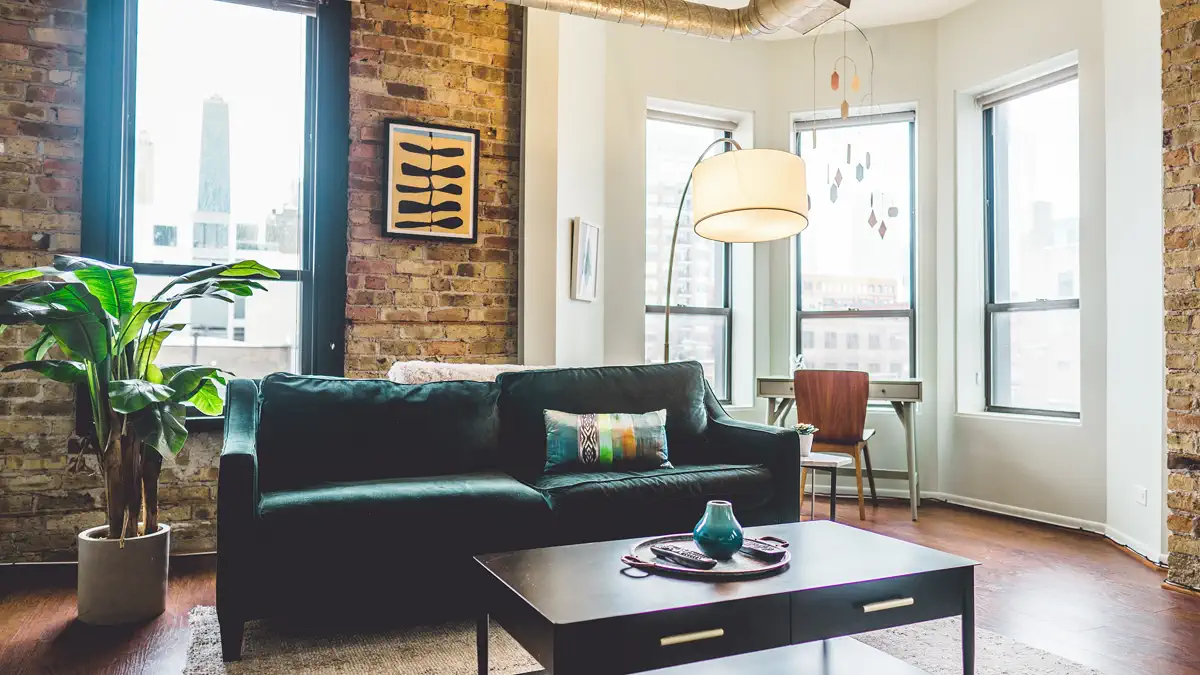
Fig. 4.38 Green sofa in an interior room (Source).
Usable as |
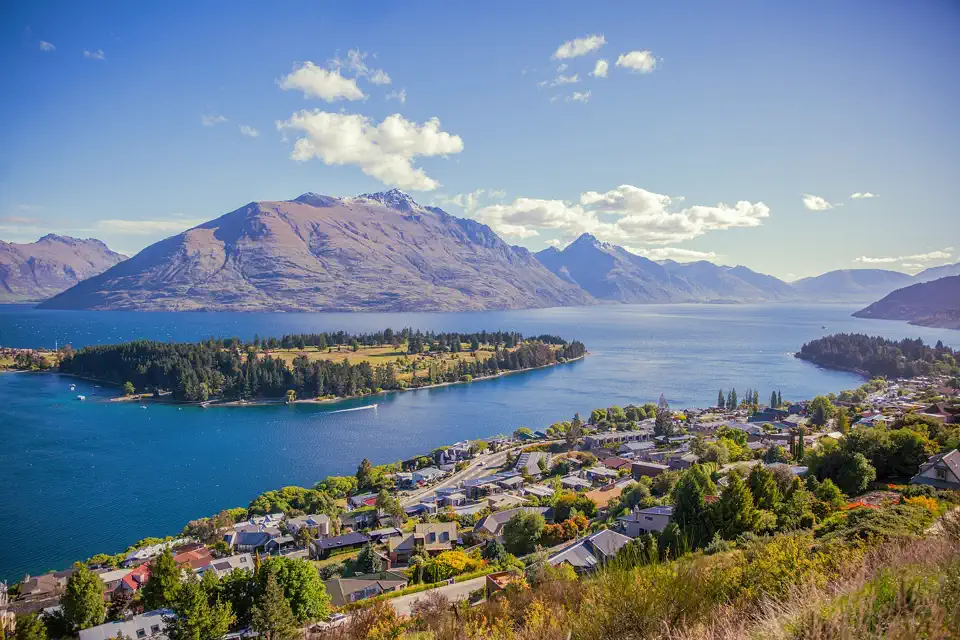
Fig. 4.39 Landscape image of a mountain and water scene
(Source).
Usable as |

Fig. 4.40 Photo of a keyboard and documents on a desk
(Source).
Usable as |
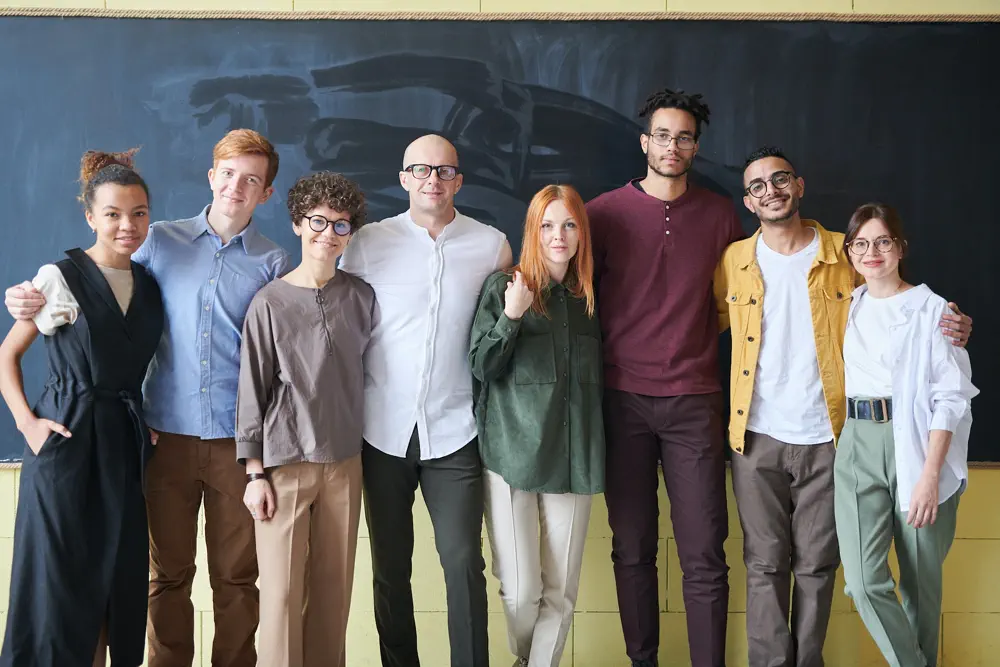
Fig. 4.41 Photo of a group of people in front of a blackboard
(Source).
Usable as |
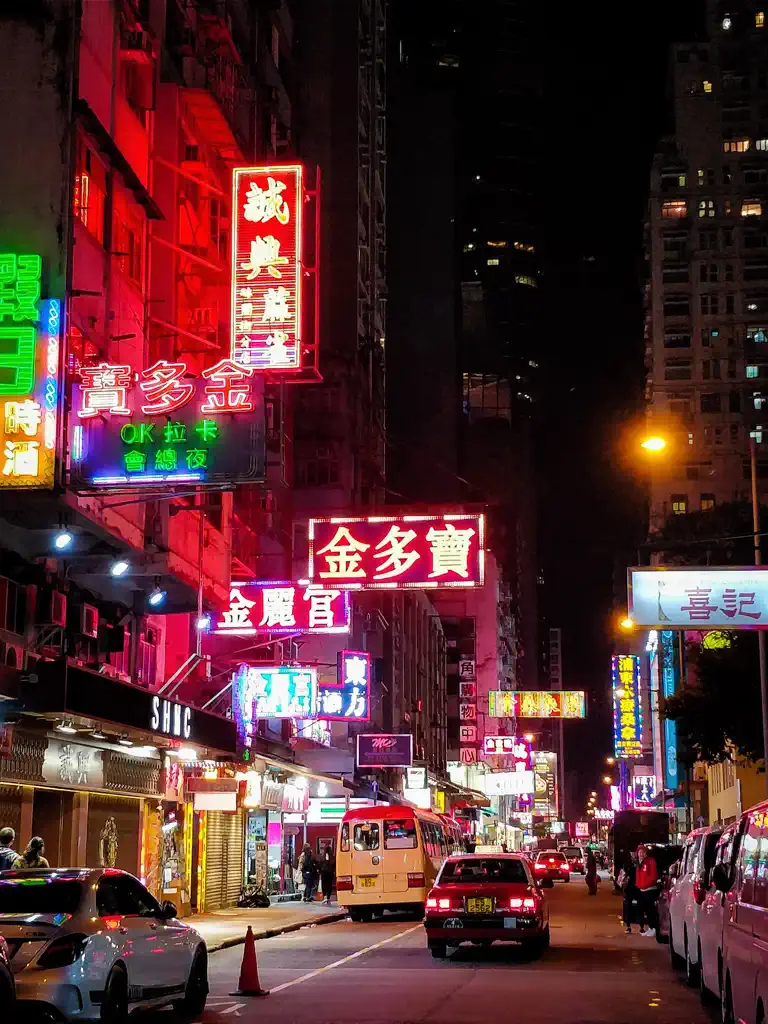
Fig. 4.42 Photo of a Hong Kong street at night
(Source).
Usable as |
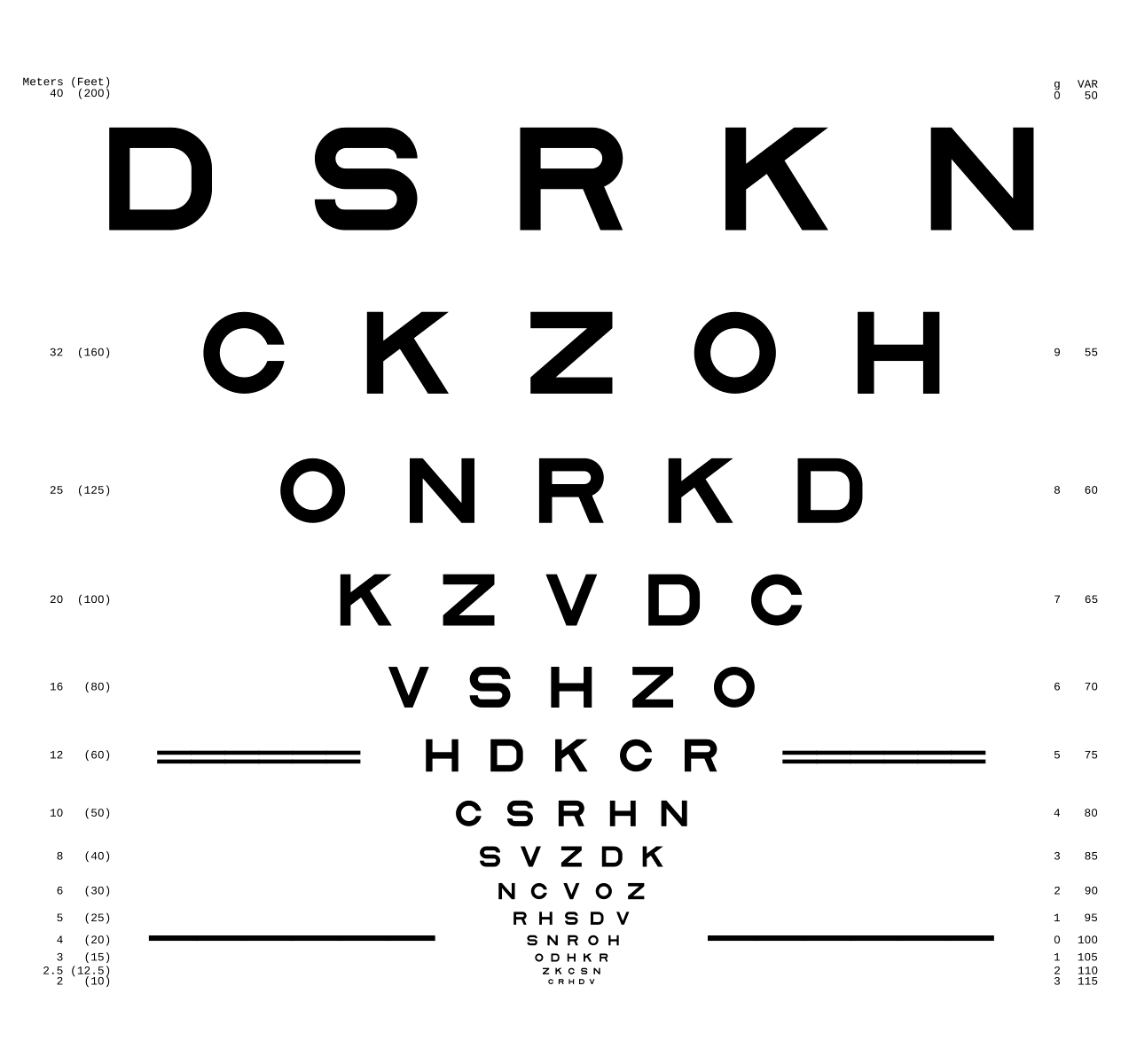
Fig. 4.43 ETDRS Chart standard (Source).
Usage with |
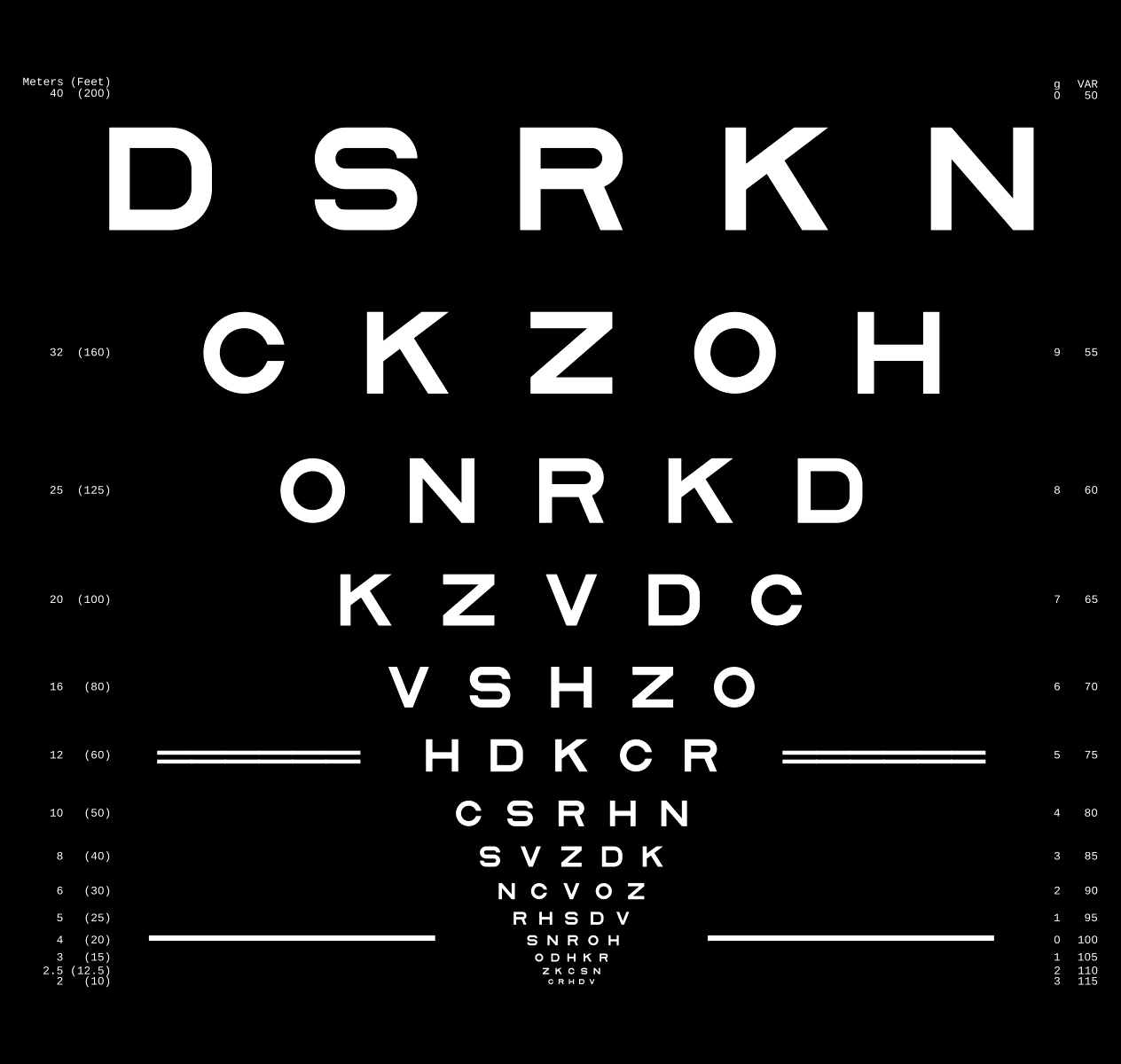
Fig. 4.44 ETDRS Chart standard. Edited version of the ETDRS image.
Usage with |
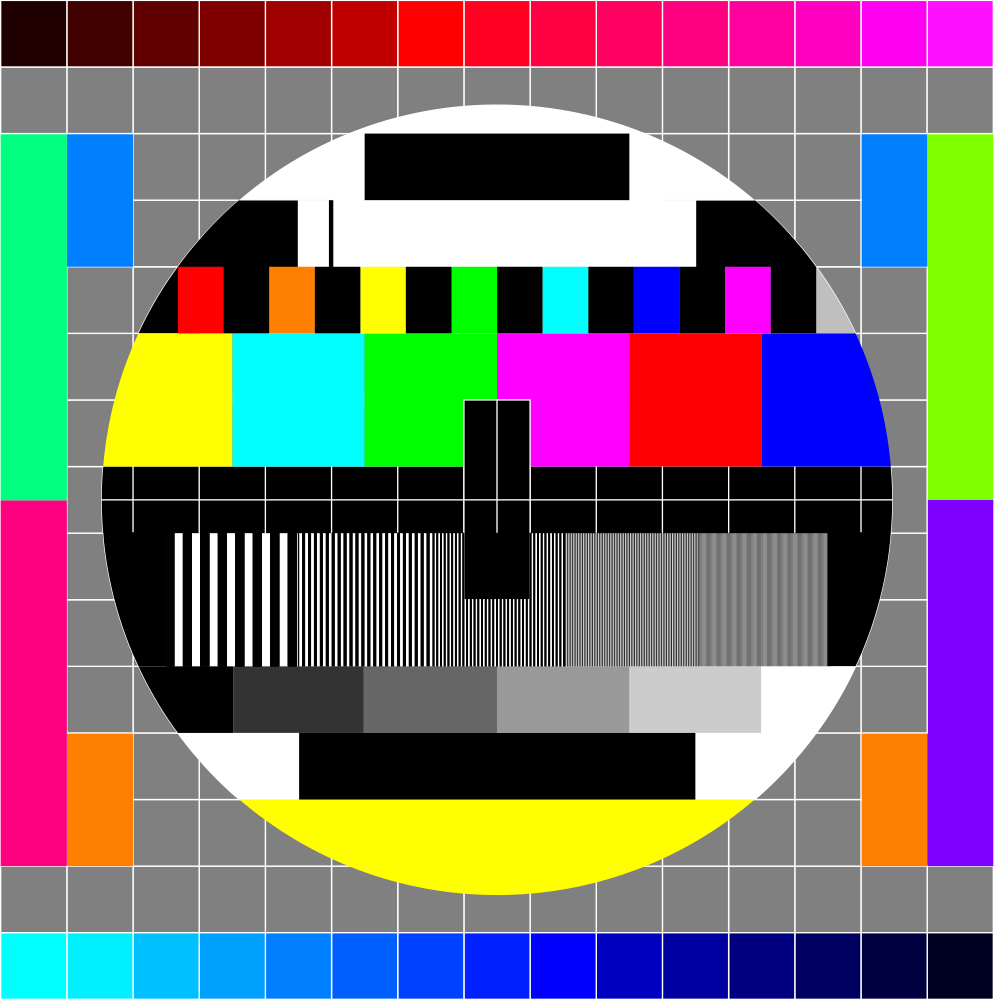
Fig. 4.45 TV test card #1 (Source).
Usage with |
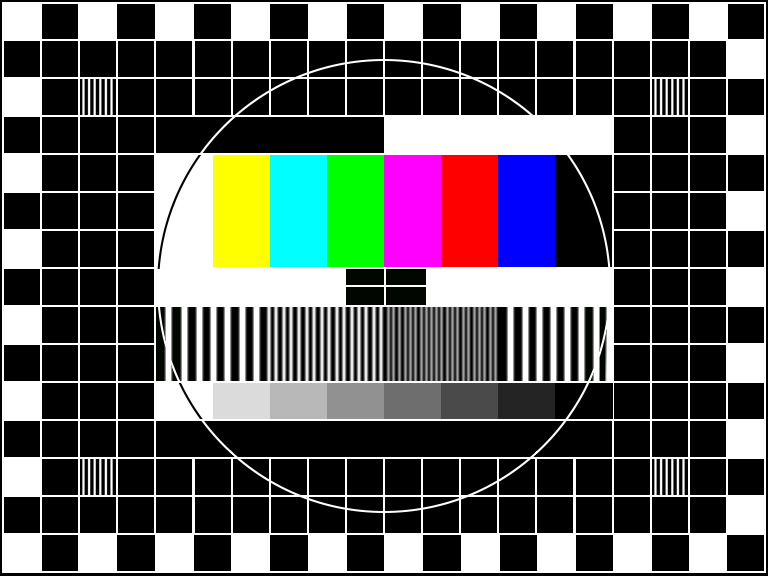
Fig. 4.46 TV test card #2 (Source).
Usage with |
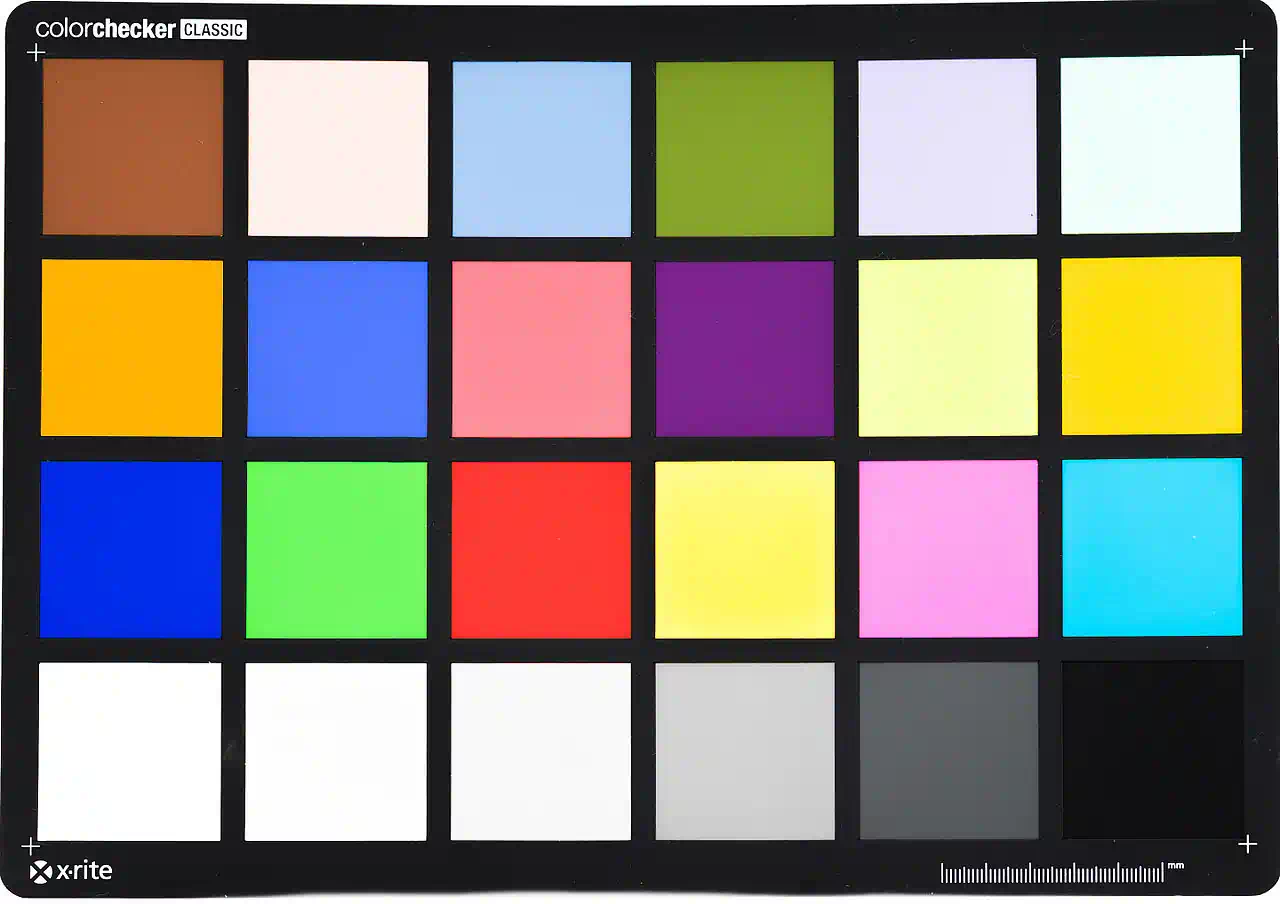
Fig. 4.47 Color checker chart
(Source).
Usage with |
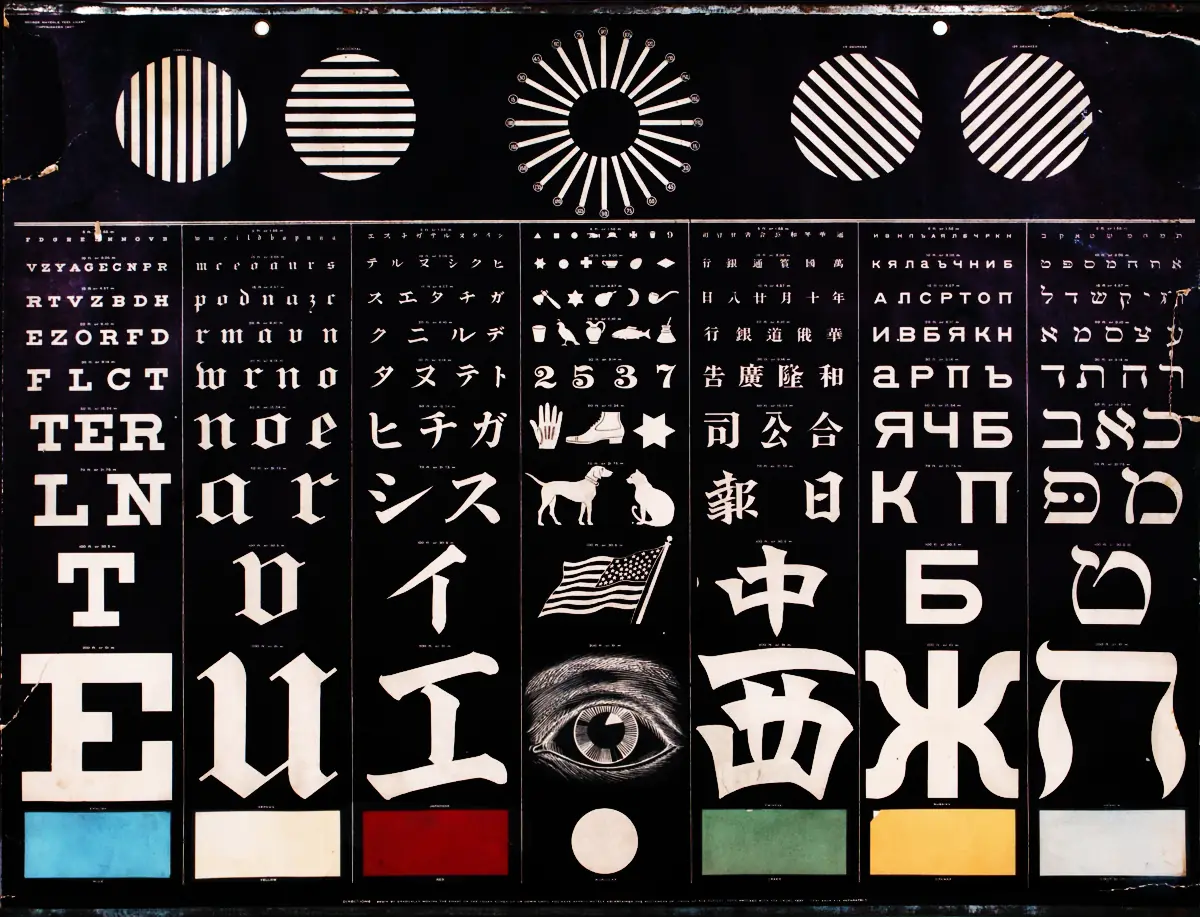
Fig. 4.48 Photo of a vintage eye test chart
(Source).
Usage with |
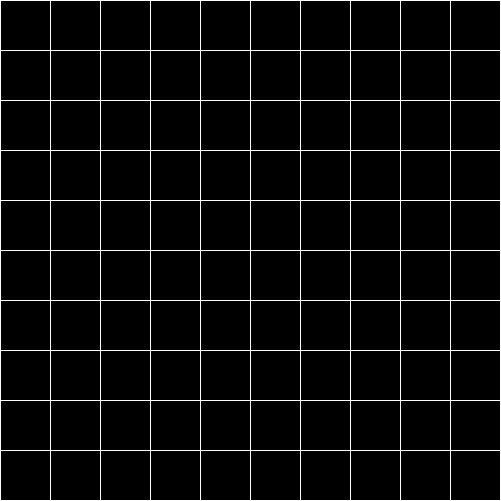
Fig. 4.49 White grid on black background with 10x10 cells. Useful for distortion characterization. Own creation.
Usage with |
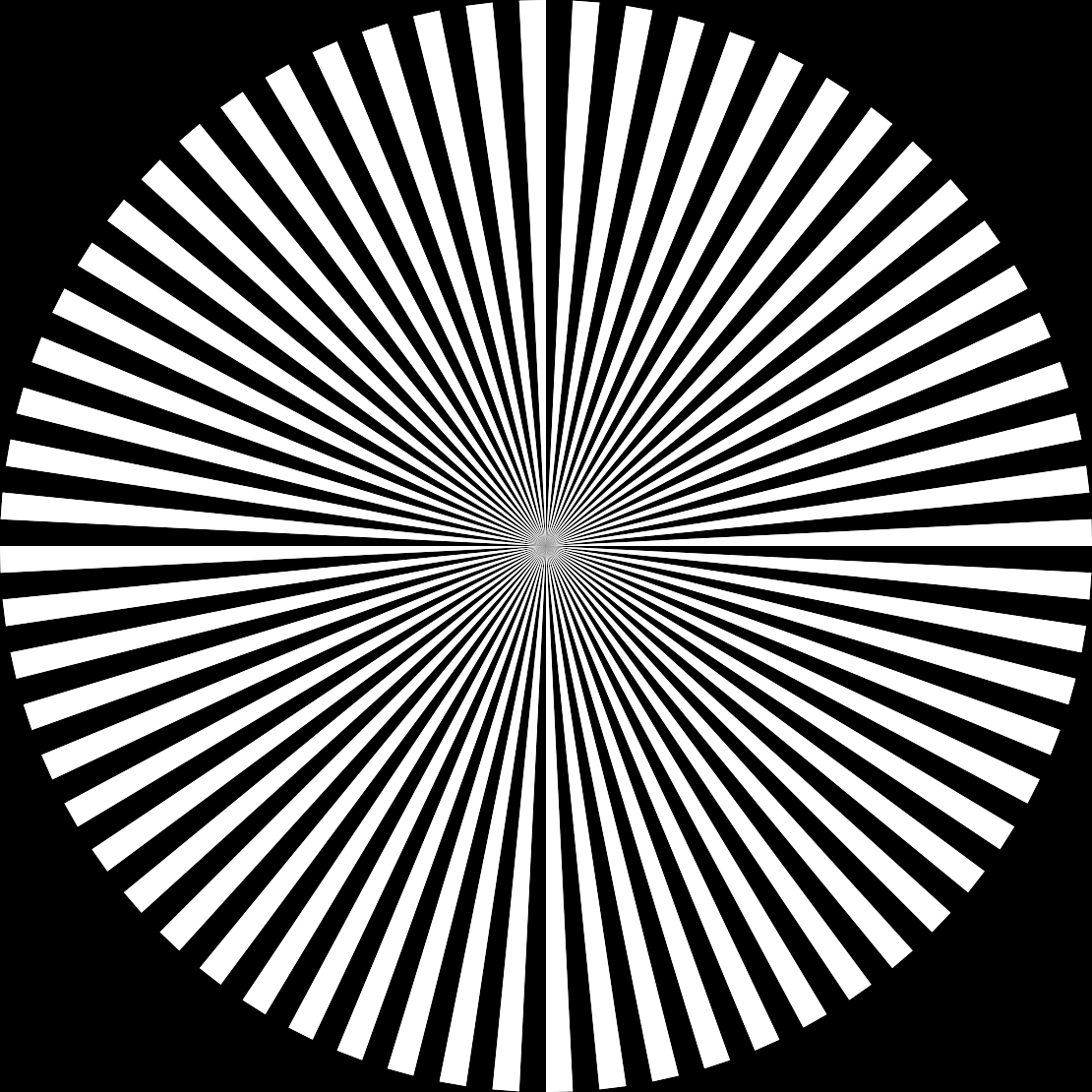
Fig. 4.50 Siemens star image.
Own creation.
Usage with |


References